anne pro 2 manual
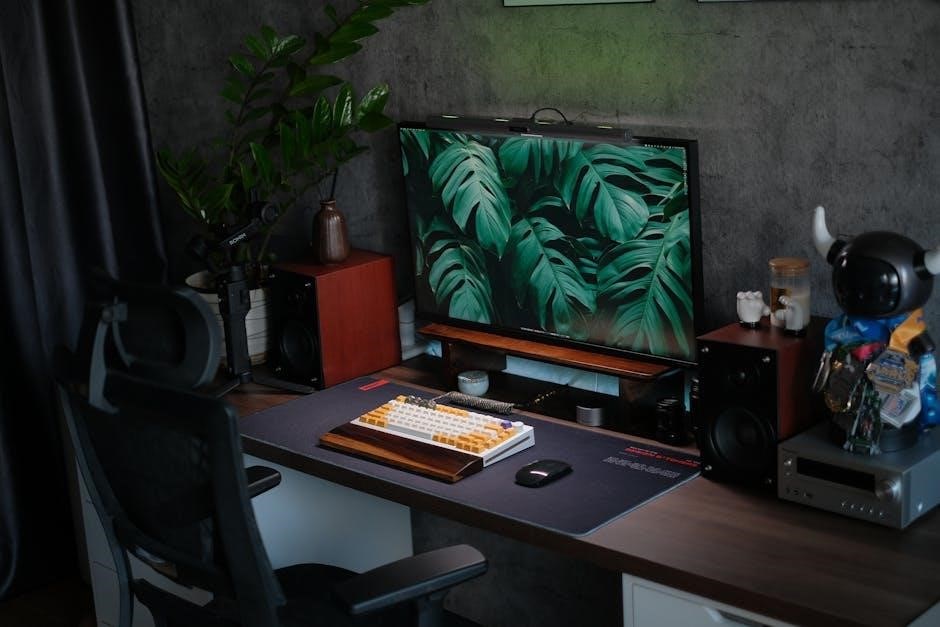
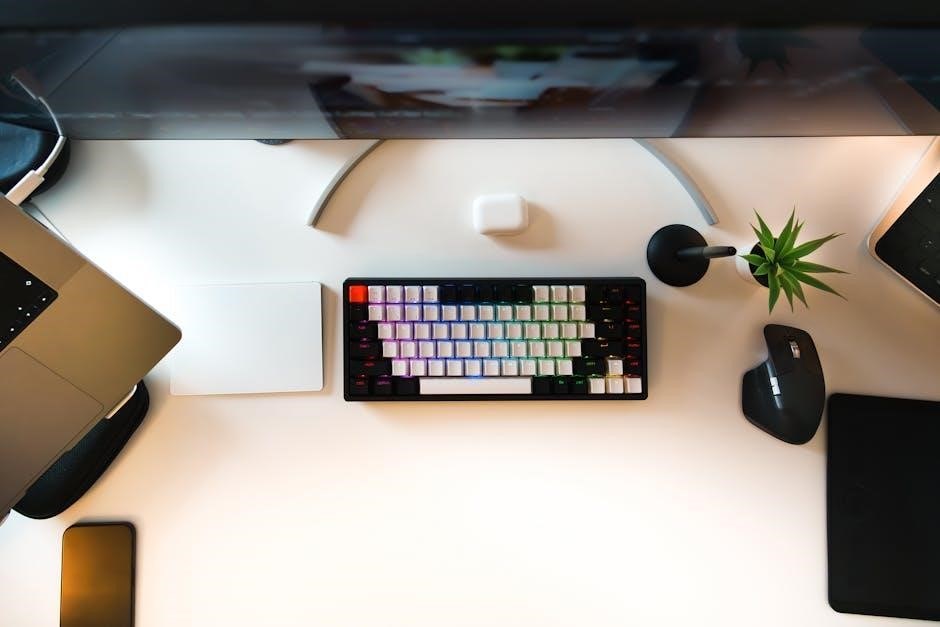
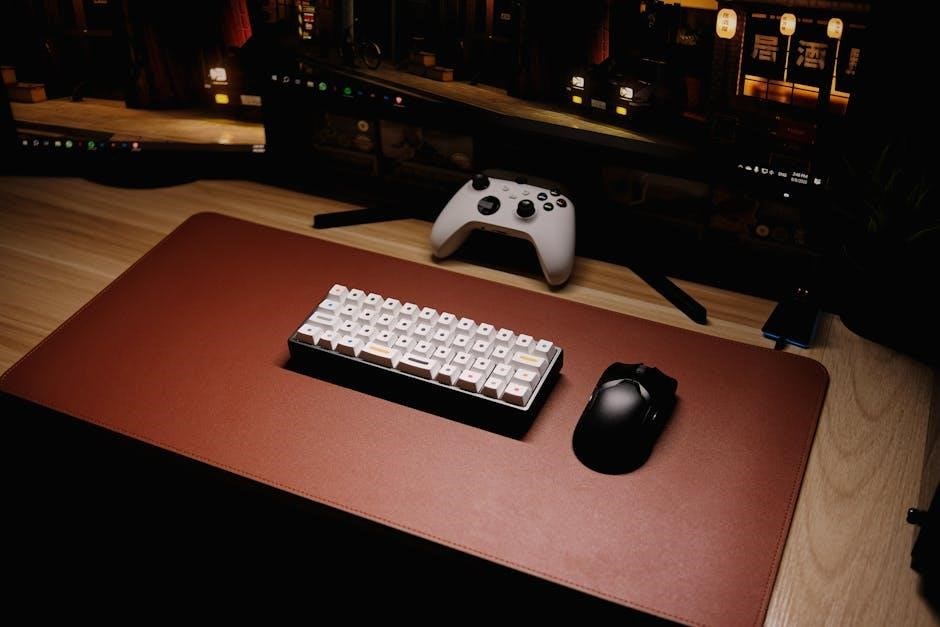
The Anne Pro 2 is a compact, 60% mechanical keyboard, celebrated for its RGB lighting, Bluetooth capabilities, and integrated rechargeable battery.
What is the Anne Pro 2?
The Anne Pro 2 represents a significant leap in compact mechanical keyboard design. It’s a 60% keyboard, meaning it omits the number pad, function row, and navigation cluster, resulting in a remarkably space-saving form factor. Despite its small size, it doesn’t compromise on functionality, offering a full keyboard experience through extensive key mapping and programmable layers.
This keyboard distinguishes itself with vibrant RGB backlighting, customizable via both hardware shortcuts and dedicated software. Connectivity is versatile, supporting both Bluetooth wireless operation and a reliable USB-C wired connection. A built-in battery provides portability, making it ideal for on-the-go use. The Anne Pro 2 is designed for enthusiasts seeking a premium, portable, and highly customizable keyboard solution.
Key Features and Specifications
The Anne Pro 2 boasts several key features. It utilizes Gateron mechanical switches (available in various types like Red, Brown, and Blue) for a tactile and responsive typing experience. RGB lighting is fully customizable, with numerous effects and color options. Bluetooth 4.0 ensures stable wireless connectivity, while USB-C provides a wired alternative.
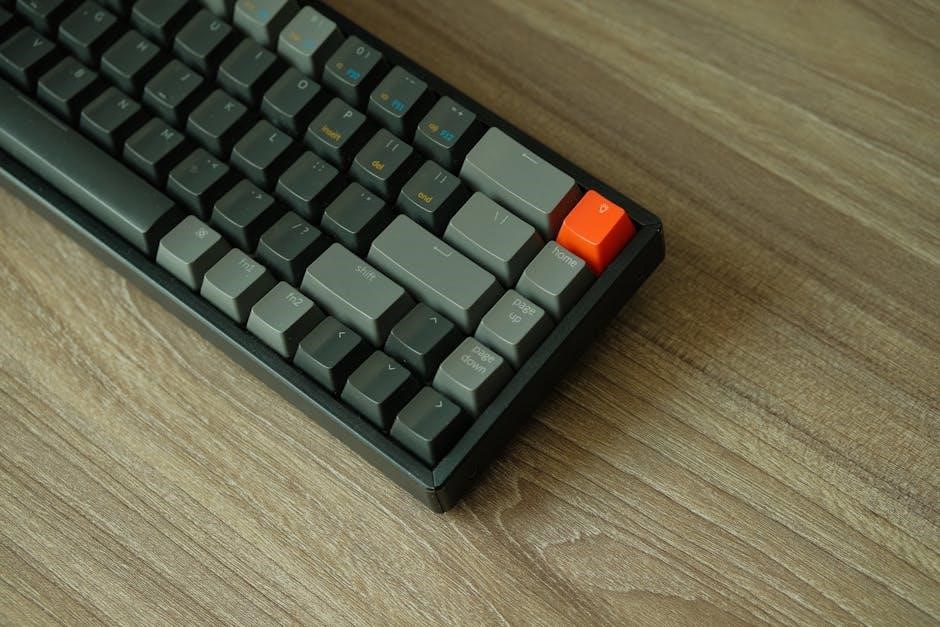
Specifications include a 61-key layout, a battery capacity of 1900mAh (offering extended use), and compatibility with both Windows and macOS. The keyboard supports NKRO (N-Key Rollover) for accurate input during fast-paced gaming. Its compact size (approximately 9.6 x 3.7 x 1.5 inches) and lightweight design enhance portability. Software allows for advanced customization of keymaps and lighting profiles.
Getting Started with Your Anne Pro 2
Initial setup involves unboxing, charging via USB-C, and familiarizing yourself with the keyboard’s layout and function key combinations for optimal use.
Unboxing and Initial Setup
Upon receiving your Anne Pro 2, carefully open the packaging to reveal the keyboard itself, a USB-C cable for charging and wired connection, and potentially some keycap pullers or extra keycaps depending on the bundle. Before first use, it’s recommended to fully charge the keyboard using the provided USB-C cable.
Connect the cable to a power source and the keyboard; a charging indicator will illuminate. While charging, take a moment to inspect the keyboard for any physical damage. Once charged, power on the keyboard. The Anne Pro 2 is often shipped in a locked state; use Fn + Win to unlock the Windows key and enable full functionality. Familiarize yourself with the key layout and the function layer accessed via the Fn key.
Charging the Battery
The Anne Pro 2 features a built-in rechargeable battery, providing wireless freedom. To charge, connect the included USB-C cable to the keyboard and a power source. A red LED indicator typically signifies charging is in progress. Allow approximately 2-3 hours for a full charge, indicated by a change in the LED color – often to green or turning off completely.
You can continue using the keyboard while it’s charging, either wirelessly or via the USB-C connection. Avoid using the keyboard during charging if overheating is observed. The battery life varies depending on RGB brightness and usage, but generally offers several hours of wireless operation. Regularly charging the battery will maintain optimal performance.
Connectivity Options
The Anne Pro 2 offers versatile connectivity, supporting both Bluetooth wireless operation and a reliable wired connection via the included USB-C cable.
Bluetooth Pairing Guide
Pairing the Anne Pro 2 via Bluetooth requires a specific process. First, ensure the keyboard is powered on. To initiate pairing for a new device at location one, firmly hold Fn2 + 1 for approximately five seconds. The keyboard will then become discoverable.
On your desired device (computer, tablet, or phone), search for available Bluetooth devices. The Anne Pro 2 should appear in the list. Select it to begin the pairing process. If prompted, confirm the pairing request.
Remember, simply pressing Fn2 + 1 switches between already paired devices, not initiating a new pairing. Holding the keys for the full five seconds is crucial for discovery mode. Repeat this process for locations two, three, and four, using Fn2 + 2, Fn2 + 3, and Fn2 + 4 respectively.
Wired Connection (USB-C)
Connecting the Anne Pro 2 via a USB-C cable is straightforward and provides a stable, low-latency connection. Locate the USB-C port on the keyboard – typically found on the rear edge. Connect one end of a USB-C cable into this port and the other end into a compatible USB-A or USB-C port on your computer or device.
The keyboard should be instantly recognized by your operating system without requiring any additional drivers. It will function as a standard keyboard. Using a wired connection also allows for simultaneous charging of the internal battery, even while in use.
This method bypasses Bluetooth, offering a reliable alternative for gaming or tasks demanding precise input. Disconnecting the cable immediately reverts the keyboard to its last used wireless profile, if available.

Customization and Programming
The Anne Pro 2 offers extensive customization options, including RGB lighting effects, key remapping, and macro programming, all accessible through dedicated software.
Keyboard Shortcuts ‒ RGB Lighting Effects
Controlling the vibrant RGB lighting on your Anne Pro 2 is remarkably simple using function key combinations. To toggle the backlight on or off, press Fn + Right. Adjust the dynamic lighting effect speed with Fn + T, allowing you to create a subtle pulse or a rapid, energetic display.
Fine-tune the brightness to your preference using Fn + Y; dim it for late-night work or brighten it for daytime visibility. Explore the diverse LED modes available by pressing Fn + U, cycling through pre-programmed patterns and effects. These shortcuts provide quick, on-the-fly adjustments without needing to access the software, offering a seamless and personalized lighting experience.
Keyboard Shortcuts ‒ Arrow Keys
Navigating without traditional arrow keys is easily achieved on the Anne Pro 2 through clever function key combinations. Utilize Fn + W for Up Arrow, Fn + A for Left Arrow, Fn + S for Down Arrow, and Fn + D for Right Arrow. Alternatively, you can use Fn + I for Up, Fn + J for Left, Fn + K for Down, and Fn + L for Right.
These dual shortcut sets offer flexibility and redundancy, ensuring you always have a convenient way to control cursor movement or emulate arrow key functionality within applications. Mastering these shortcuts enhances efficiency and allows you to fully utilize the compact 60% layout of the Anne Pro 2.
Keyboard Shortcuts ‒ System Functions
The Anne Pro 2 provides quick access to essential system functions via dedicated keyboard shortcuts. Press Ctrl + Ctrl to change keyboard layouts, and Alt + Alt combined with Fn Lock to toggle FN Lock functionality. Lock the Windows Key with Fn + Win, and activate Scroll Lock using Fn + O.
Furthermore, Fn + P initiates Pause Break, while Fn + ; captures a Print Screen. Utilize Fn + Page Up for page navigation. These shortcuts streamline common tasks, boosting productivity and minimizing reliance on a mouse. Remember these combinations for a smoother computing experience with your Anne Pro 2.
Using the Anne Pro 2 Software
The Anne Pro 2 benefits from dedicated software, enabling extensive customization of RGB lighting and keymapping. While the mobile app can be somewhat buggy, it offers RGB control. The software allows users to create and upload custom keymaps, tailoring the keyboard to their specific workflow.
Explore advanced macro programming options within the software, assigning complex commands to single key presses. Regularly check for software updates to ensure optimal performance and access to the latest features. Though alternatives exist, the official software unlocks the full potential of your Anne Pro 2.
Switching Between Devices
Device profiles are accessed via Fn2 + 1/2/3/4; holding Fn2 + a number for 5 seconds initiates pairing with that device;
Understanding Device Profiles (Fn2 + 1/2/3/4)
The Anne Pro 2 efficiently manages multiple paired devices using four dedicated profiles, accessible through the Fn2 key combined with the numbers 1, 2, 3, and 4. A quick press of Fn2 + a number instantly switches between already paired devices. However, to initiate pairing with a new device, or to re-establish a connection, a hold is required.
Specifically, you must press and hold Fn2 + the desired profile number (1-4) for a full five seconds. This action puts the keyboard into pairing mode, allowing your device to discover and connect to the Anne Pro 2. Simply tapping the combination only toggles between previously connected devices, not initiating a new pairing sequence. Remember this distinction to avoid connection frustrations!
Pairing New Devices
To pair a new device with your Anne Pro 2, begin by ensuring the keyboard is powered on. Then, select an available device profile (1-4) by pressing and holding Fn2 alongside the corresponding number for five seconds – this activates pairing mode. Your device will then detect the Anne Pro 2 in its Bluetooth settings.
Select “Anne Pro 2” from the list of available devices on your computer, tablet, or phone. If prompted, enter the pairing code “0000”. Once connected, the keyboard will remember this device on the selected profile. Repeat this process for each additional device, assigning each to a unique profile for seamless switching. Remember, a short press of Fn2 + number switches, while a hold initiates pairing.
Troubleshooting Common Issues
Common problems include Bluetooth connection failures and unresponsive inputs; ensure proper pairing and check USB-C cable integrity for wired connections.
Bluetooth Connection Problems
Experiencing Bluetooth difficulties? First, verify Bluetooth is enabled on both your Anne Pro 2 and the target device. Ensure the keyboard isn’t already connected to another device, as it can only maintain one active Bluetooth link at a time. If pairing fails, hold Fn2 + 1 for five seconds to initiate pairing mode, then search for “Anne Pro 2” on your device.
Remember, simply pressing Fn2 + 1 switches between already paired devices, it doesn’t initiate a new pairing process. If the connection is unstable, try moving closer to the device or removing potential sources of interference. A full battery charge is also crucial for stable Bluetooth performance. Finally, restarting both the keyboard and the connecting device can often resolve connectivity issues.
Keyboard Not Recognizing Inputs
If your Anne Pro 2 isn’t registering keystrokes, begin by checking the physical connection if using a USB-C cable. Ensure it’s securely plugged into both the keyboard and your computer. For Bluetooth connections, confirm the keyboard is properly paired and connected. Next, verify the correct keyboard layout is selected within your operating system’s settings.
Sometimes, a simple restart of your computer can resolve driver-related issues. If problems persist, try a different USB port or Bluetooth device. Consider testing the keyboard on another computer to isolate whether the issue lies with the keyboard itself or your primary system. Finally, ensure no keycaps are obstructed or damaged.
Advanced Features
Unlock the Anne Pro 2’s full potential with custom macro programming and extensive RGB lighting customization options, accessible through dedicated software.
Custom Macro Programming
The Anne Pro 2 empowers users with the ability to record and implement custom macros, significantly enhancing workflow efficiency. This feature allows you to assign complex sequences of keystrokes to a single key, automating repetitive tasks. Access the macro programming functionality through the dedicated Anne Pro 2 software. Within the software interface, you can initiate macro recording, define the desired key sequence, and then assign that macro to a specific key on your keyboard.
Experiment with different macro configurations to streamline your frequently used commands, boosting productivity across various applications. Remember to save your macro profiles for easy access and future modifications. This advanced customization option truly elevates the Anne Pro 2 beyond a standard mechanical keyboard.
RGB Lighting Customization Options
The Anne Pro 2 boasts extensive RGB lighting customization, allowing users to personalize their keyboard’s aesthetic. Through the dedicated software, you can select from a vast spectrum of colors and dynamic lighting effects. Explore pre-programmed modes like breathing, wave, and reactive, or create your own unique lighting profiles. Adjust brightness levels and speed settings to fine-tune the visual experience.
Individual key lighting can also be customized, enabling you to highlight specific keys or create visually striking patterns. The software interface provides intuitive controls for managing and saving your preferred RGB configurations. Experiment with different combinations to match your setup and express your personal style.
Maintenance and Care
Regular cleaning and careful handling will ensure your Anne Pro 2 remains in optimal condition, preserving its functionality and aesthetic appeal for years.
Cleaning Your Anne Pro 2
Maintaining a clean Anne Pro 2 is crucial for optimal performance and longevity. Begin by disconnecting the keyboard from any power source – either USB or ensure Bluetooth is disabled. Gently turn the keyboard upside down and tap it to dislodge any loose debris, such as dust or crumbs, from between the keycaps.
For a more thorough cleaning, use a keycap puller (often included with the keyboard) to remove the keycaps. This allows access for cleaning underneath; Wipe the keyboard plate with a slightly damp, lint-free cloth. Avoid using harsh chemicals or abrasive cleaners, as these can damage the finish.
The removed keycaps can be washed with mild soap and warm water. Ensure they are completely dry before reattaching them to the keyboard. Regularly cleaning your Anne Pro 2 will keep it looking and functioning its best!
Keycap Replacement
Replacing keycaps on your Anne Pro 2 is a straightforward process, allowing for customization and repair. First, obtain a compatible keycap set – ensure it supports the Anne Pro 2’s layout and switch type. Utilize a keycap puller, gently pressing down on the keycap while wiggling it upwards to avoid damage to the switch.
Once removed, align the new keycap with the switch stem and press down firmly until it clicks into place. Be careful not to force it, as this could bend the stem. If a keycap is particularly stubborn, try a different angle or a slightly different puller.
Replacing keycaps is a great way to personalize your Anne Pro 2 and refresh its appearance!